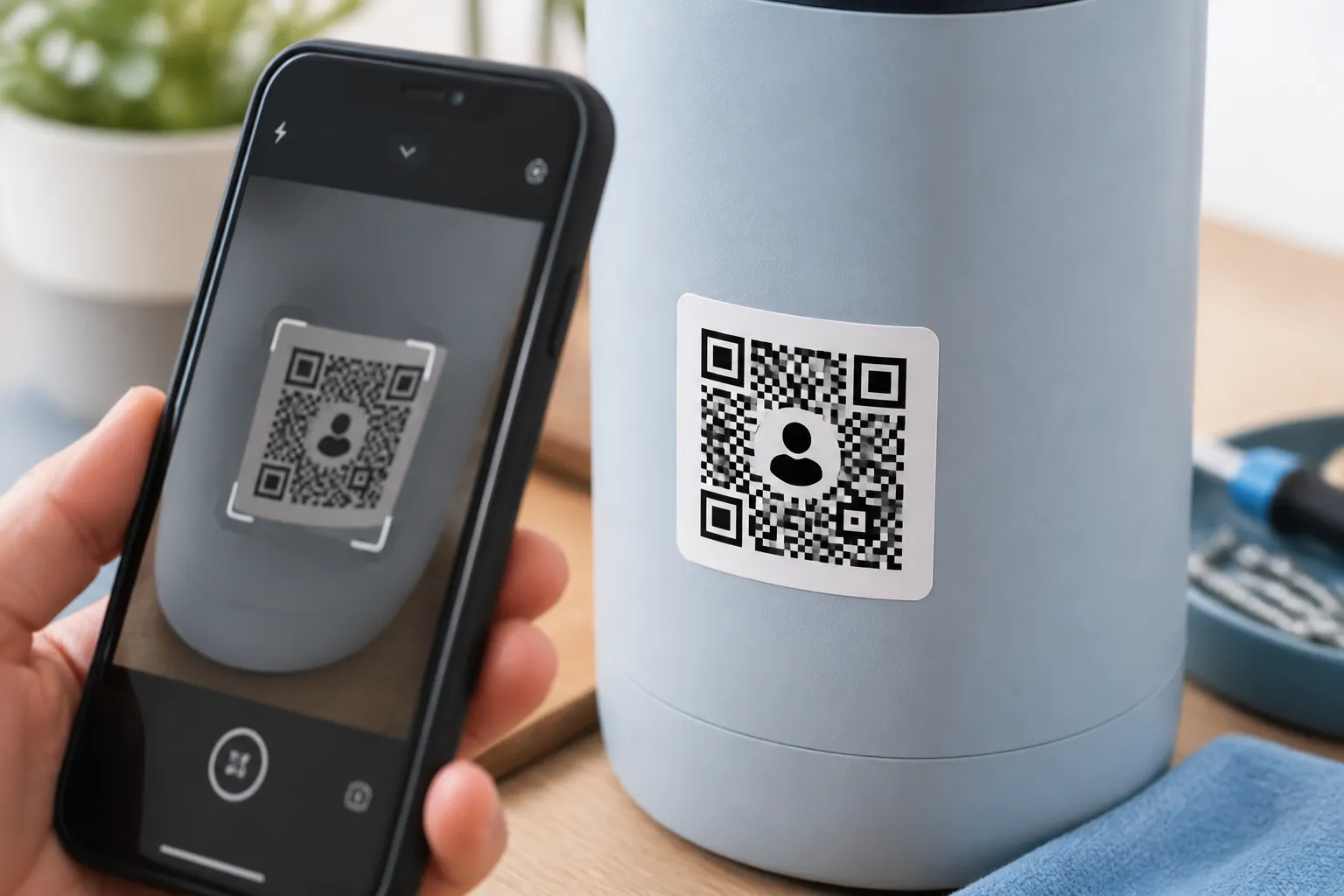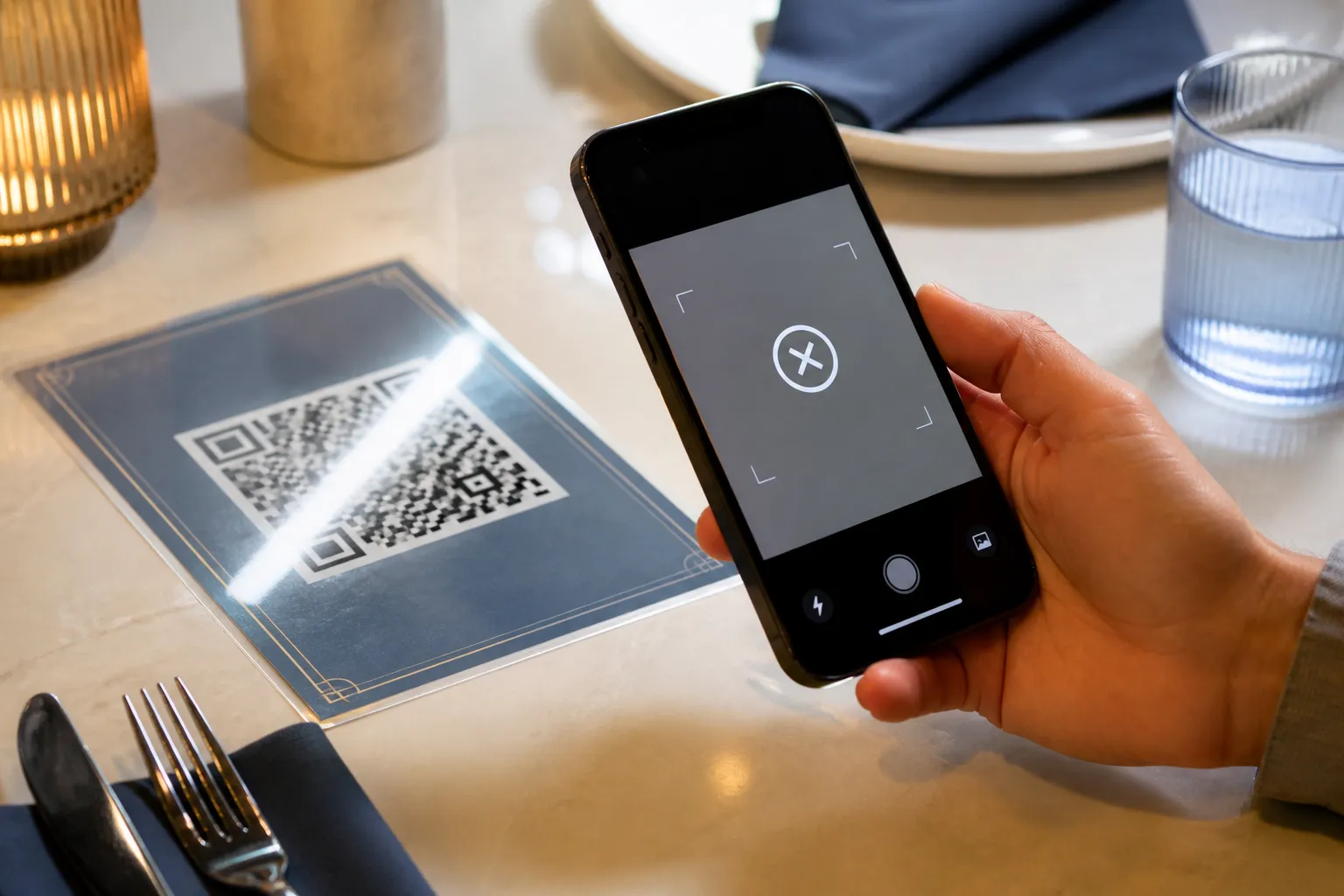
Somewhere there is a landfill of glossy conference banners with dead QR codes on them. I have personally held one: a beautiful two-metre roll-up where the code scanned perfectly on the designer’s screen and refused every phone in the room once it was printed. What killed it was not the code. It was a fit-to-page setting that shrank the modules, a laminate that threw glare (precisely the kind of thing covered in why QR codes sometimes fail to scan), and nobody scanning the actual banner before three hundred of its cousins went to the printer. The bill for reprinting was a lot more than the ten minutes a test would have cost.
Here is the mindset that prevents that. The file you downloaded is not the final QR code. The final code is the pattern that exists after your layout software, your export settings, the printer, the ink, the material, the finishing, the placement, the ambient light, the viewing distance, and a real camera have all had their turn with it. Every one of those stages can quietly break a code that looked flawless on screen. So you test the thing that ships, not the thing you made.
Verify the payload before you trust the picture
Start with what the code actually says, independent of how it looks. Decode your source file with at least two different reader apps and compare the recovered text, character for character, against the payload you intended. Two readers matter because a single app can be forgiving in ways the next one is not.
For a URL, check the whole thing: scheme, host, path, query string, and the full redirect chain if there is one. A code that resolves through three hops today can break at hop two next month. For Wi-Fi, vCard, or event codes, walk every imported field, because an escaped character or a mangled line break hides easily. One safety habit: do not reflexively open an unfamiliar decoded URL. Read the preview text first, then decide.
Inspect the layout like a printer will
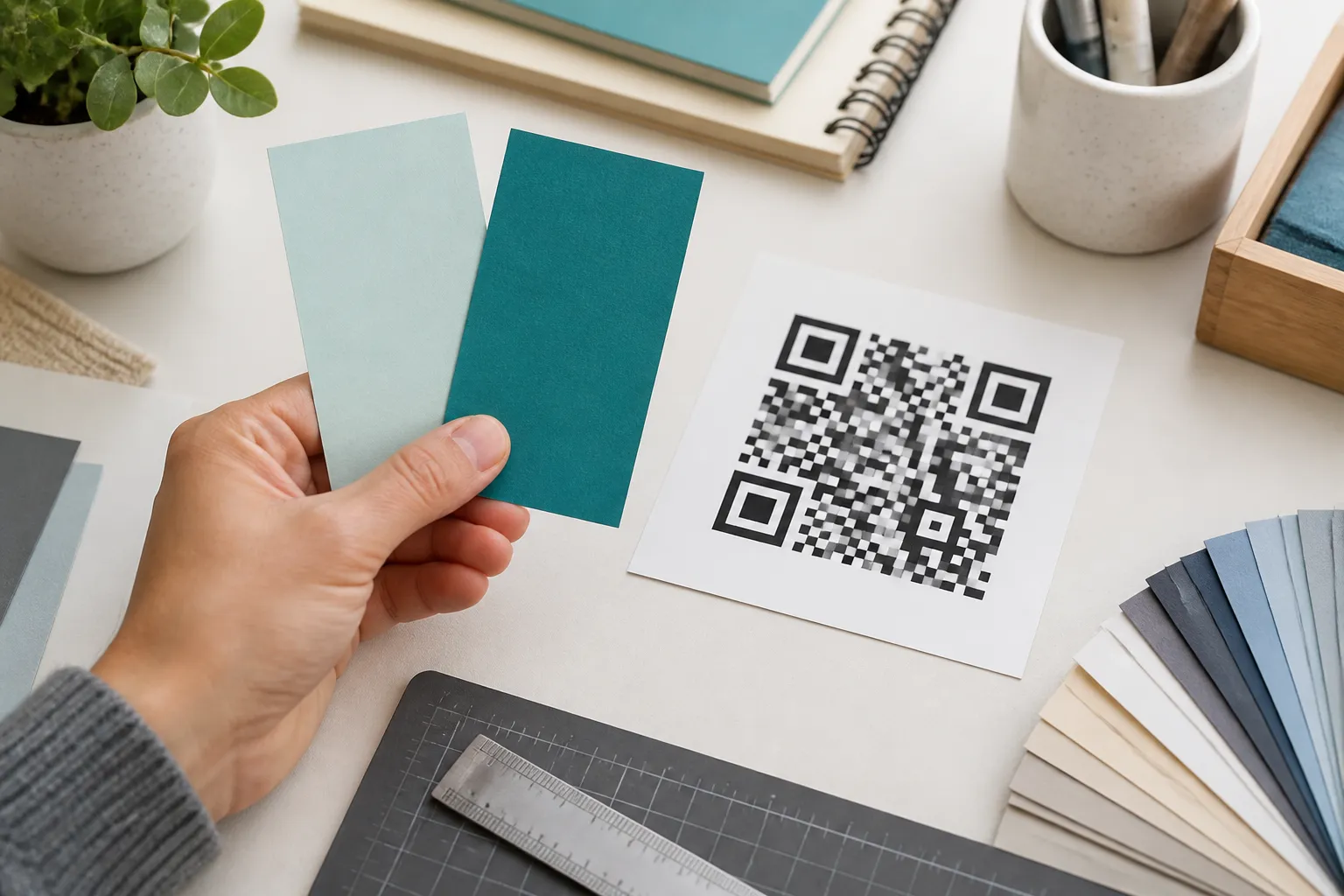
Now look at the code as a piece of art on a page. The quiet zone, the clear margin around the pattern, must stay empty. No crop mark, frame, caption, price sticker, or fold should intrude on it, because a reader uses that blank border to find the code at all. Confirm the pattern has not been stretched to fill a box, which turns square modules into rectangles no scanner expects. Check the color pairing too, since low contrast is a printing-stage failure just as often as a design-stage one; see QR-code color and contrast guidelines.
Whether you are working from a raster PNG or a vector SVG (see PNG vs. SVG QR codes if you are not sure which to request), check its effective resolution at the final printed size, and make sure the layout application has not helpfully applied smoothing or lossy compression that blurs the module edges. Then print at 100 percent scale. A fit-to-page or scale-to-fit setting is the single most common way a carefully sized 25mm label arrives as an unscannable 15mm one; see QR-code sizes for how to pick that number correctly in the first place.
Make a real proof, on the real stuff
A code on office paper is not a test of a code on matte vinyl, textured card, curved bottle, or a backlit screen. Produce your proof on the material that will actually carry the code. If the real substrate is impossible to sample before the run, pick the closest thing you can and write down the uncertainty you are accepting, so it is a decision rather than an accident.
Test after finishing, not just before it. Lamination adds glare. Folding can crease a module row. Cutting can eat into a quiet zone. A code that scans on the flat sheet can fail once it is laminated, folded into a leaflet, or wrapped around a jar. Scan the finished, installed object.
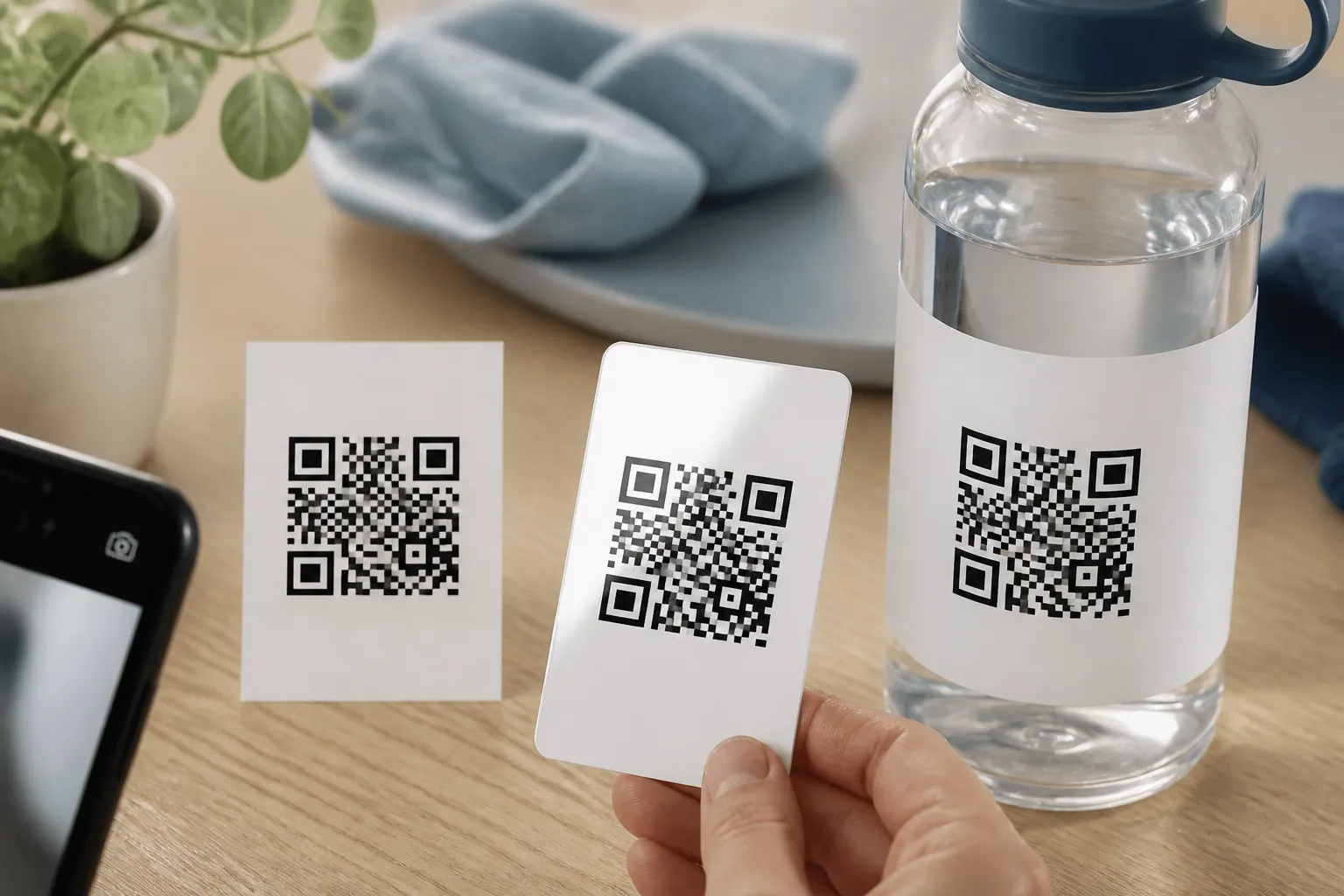
Build a small device and condition matrix
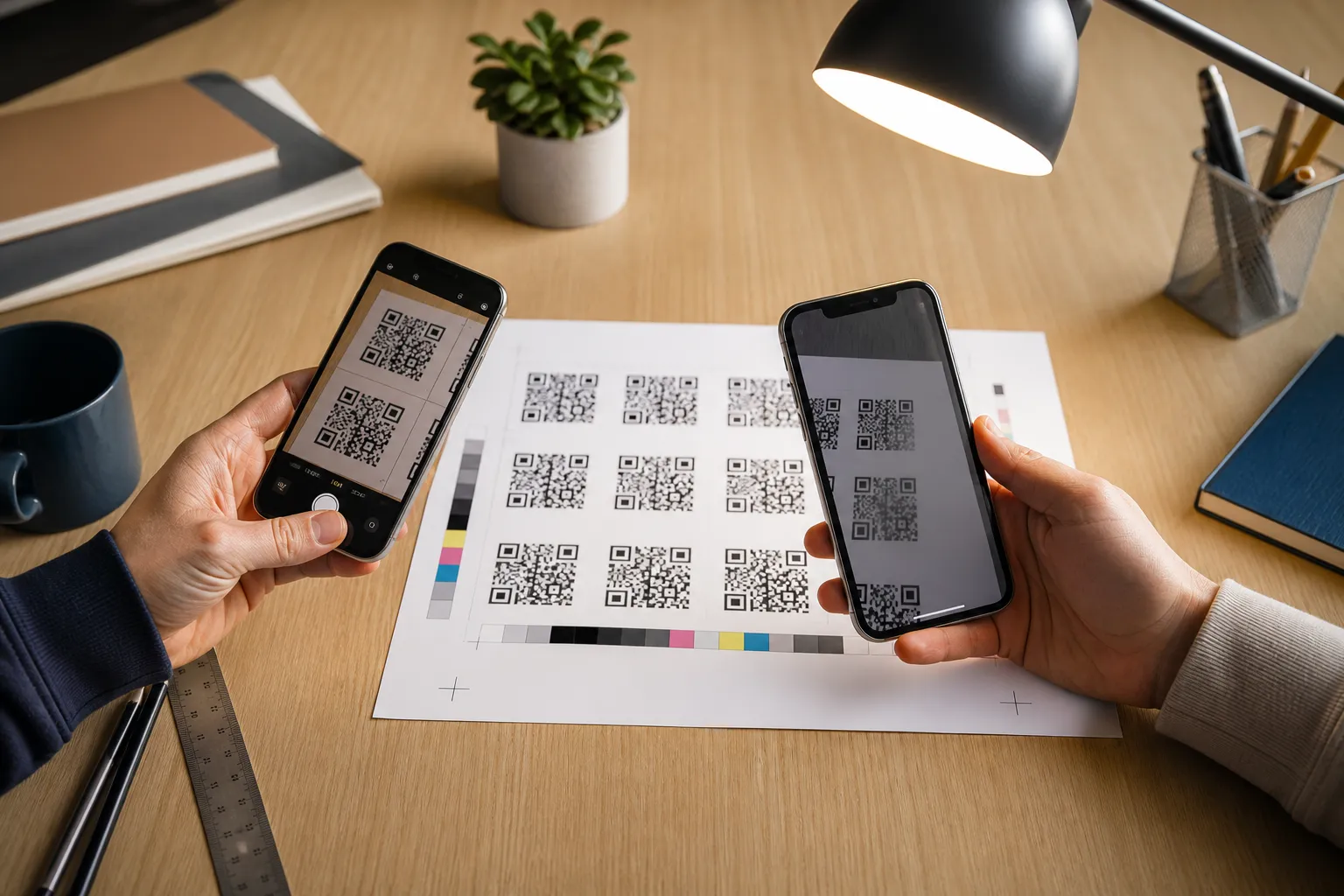
Do not certify a code on your own flagship phone alone. Assemble a modest matrix: at least two different camera systems, and where your audience includes them, an older or lower-cost device with a weaker camera. Then run the code through the conditions it will really meet:
- straight on, and at the modest angles people actually hold phones;
- at the expected distance, and a little further than you hope;
- in bright light, ordinary indoor light, and dim light;
- with and without a network connection, where that matters to the destination;
- after the code is sitting in its real surroundings, not on your desk.
When one device or angle gives an inconsistent result, record it exactly as it happened. Do not average a flaky scan into a pass. An intermittent failure in testing is a guaranteed failure at scale.
What a clean sign-off looks like
A nonprofit I advised orders 2,000 event cards this way, essentially a compressed version of the process in a pre-launch checklist for a public QR-code campaign, scaled down to one card. The designer prints a single sheet on the actual card stock, cuts one card to final size, and scans it from normal hand distance with three different phones. The event coordinator, separately, loads the landing page on cellular data with the office Wi-Fi switched off, to confirm it works for an attendee standing in a field. Only after both pass does the printer receive written approval, and that approval names the exact final file, its checksum, and the destination URL.
That paper trail is the point. If something goes wrong later, everyone knows precisely which file and which link were blessed, instead of arguing over which of five near-identical exports actually shipped.

Keep watching what you cannot reprint
A printed code’s geometry is frozen the moment it leaves the press, but the web page behind it is not. The most common post-launch failure is a static code pointing at a destination that quietly breaks: an expired TLS certificate, a redirect that changes, a page that loses its accessibility, a domain that lapses. Assign an owner to check long-lived destinations on a schedule, and keep an archived copy of both the approved artwork and the exact encoded payload. The code you cannot change deserves a destination someone is still watching.
Create the code you need
Use HighEndDIY’s private browser tool, then test the result in the setting where people will scan it.
Create a QR CodeFound something that should be corrected? Email help@HighEndDIY.com.