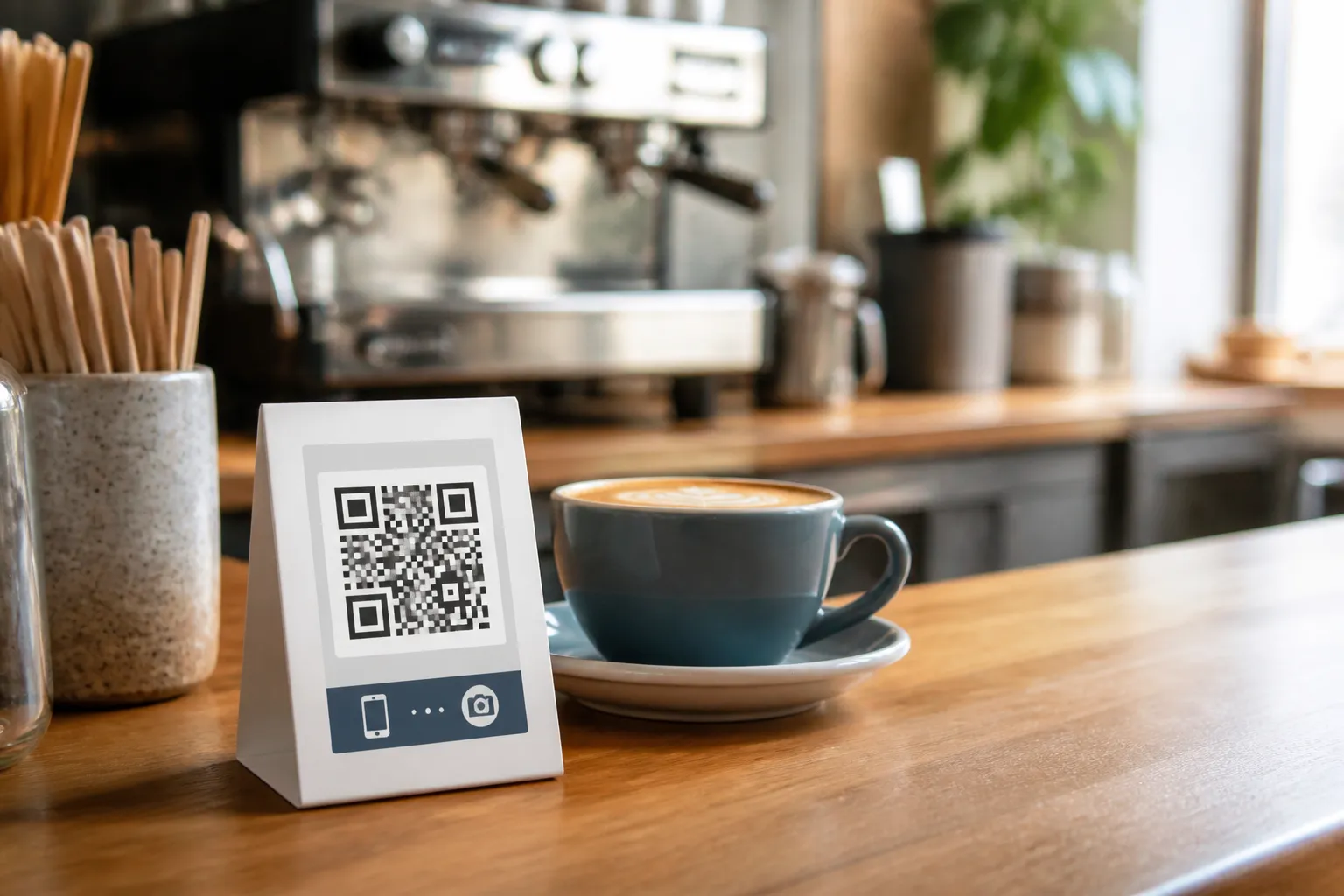
Making a QR code for a website takes about eight seconds. Making one that actually works takes the rest of the afternoon, and the difference is entirely in the parts that are not the code. I once helped a cafe owner who had printed 200 table tents pointing at her new menu. The code scanned instantly. It opened a page that redirected to her old menu, which had been taken down, which showed a hosting error in an unfamiliar language. The pattern was flawless. The journey was broken from the second link onward.
That is the thing worth internalizing before you generate anything. A website code is just one way of encoding data into a QR pattern, and a URL is a promise about where a stranger will land. The code is the easy part. The promise is the work.
Fix the destination before you make the code
Open the page you intend to link on an actual phone, and do it in a way that mimics a stranger: no existing login, no cached session, ideally in a private browsing window. That single step catches the most common failure, which is a page that looks perfect to you because your browser remembers who you are and quietly falls apart for everyone else.
Check the fundamentals while you are there. Confirm the address uses HTTPS, that it loads at a reasonable speed on a normal mobile connection rather than office fiber, that it has a clear title, and that the promised content appears right away instead of hiding below a wall of banners. Strip any tracking parameters the URL does not truly need, and never encode a private preview or draft link, which tends to expire or leak.
Then think about time. This generator produces a static code, meaning the destination is baked into the pattern for good, so prefer a stable URL on a domain you control, because printed material can outlive three website redesigns. If a poster might hang for two years, write down who owns that destination and what happens to the link during the next redesign. A code is a promise you may be keeping long after you have forgotten you made it.
Generate the code
With the destination sorted, the generator itself is quick.
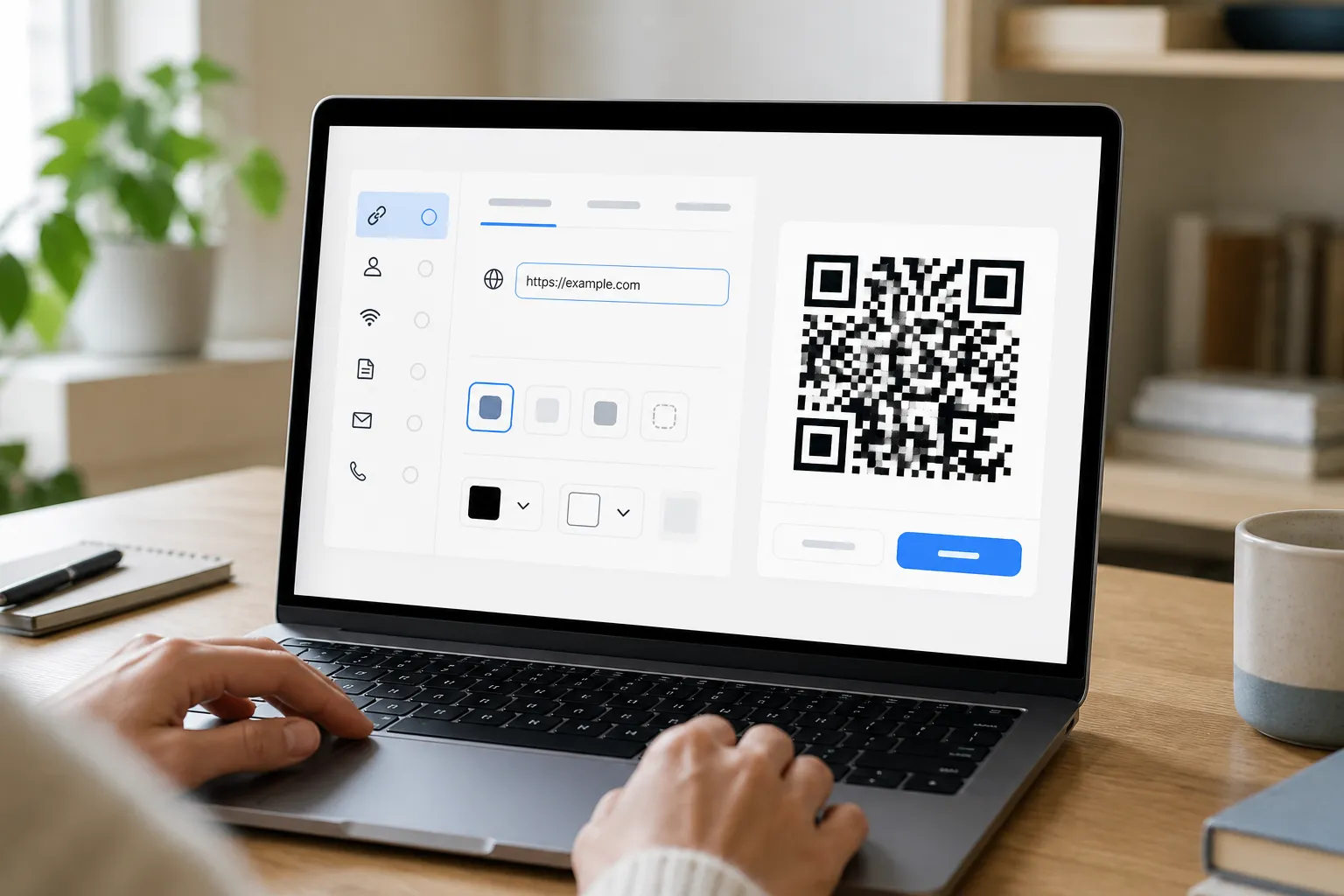
- Open the HighEndDIY QR generator.
- Choose Website URL as the code type.
- Paste the complete address, including the
https://prefix. - Keep a dark foreground on a light background, with the quiet-zone margin left clear.
- Use a modest error-correction level unless a real test gives you a reason to raise it.
- Generate the code, then download SVG for flexible print layouts or PNG for a fixed digital size (see PNG vs. SVG QR codes if you are unsure which to pick).
Two things worth knowing about what happens under the hood. HighEndDIY validates the URL scheme and rejects dangerous values like javascript:, so a malformed or hostile address will not quietly encode. And it builds the code entirely in your browser; it does not visit the URL on your behalf, which means the correctness of the destination is still yours to verify.
Design the call to action around it
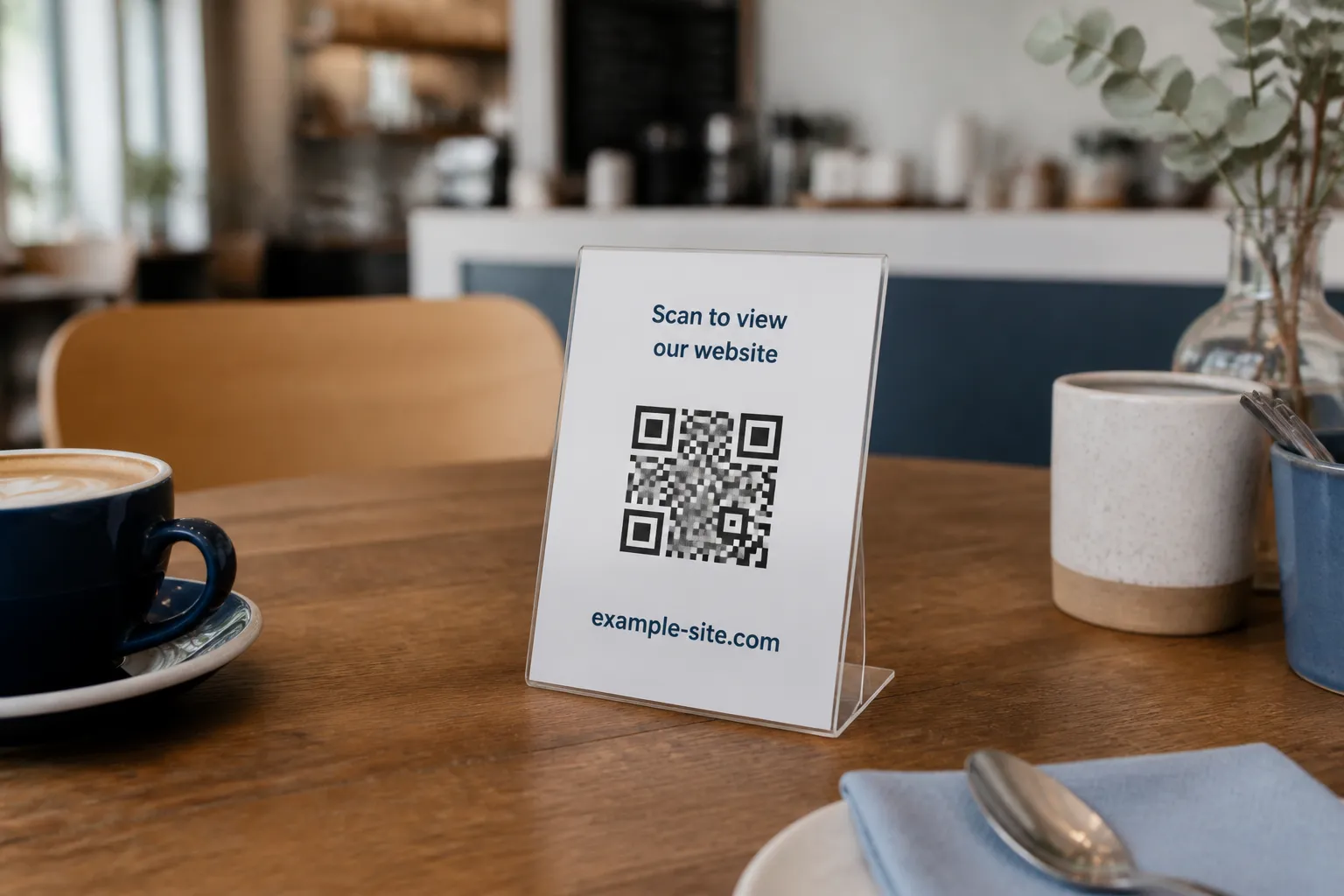
A bare black square gives a passerby no reason on earth to scan it. Curiosity is not a strategy. Add a short line of visible text that states the payoff, something like “View today’s repair checklist” or “See the full wine list,” so a person knows what they get before they lift their phone.
Print the human-readable domain nearby as well. This does two jobs at once. It lets a cautious scanner judge where the code goes before tapping, which builds trust, and it gives anyone whose camera refuses to cooperate a way to reach you by typing. Keep unrelated elements at a respectful distance, too. An advertisement, a decorative button, or a second link crowded right against the code can read as part of the QR action and send people somewhere they did not intend to go.
Test the whole path, not just the scan
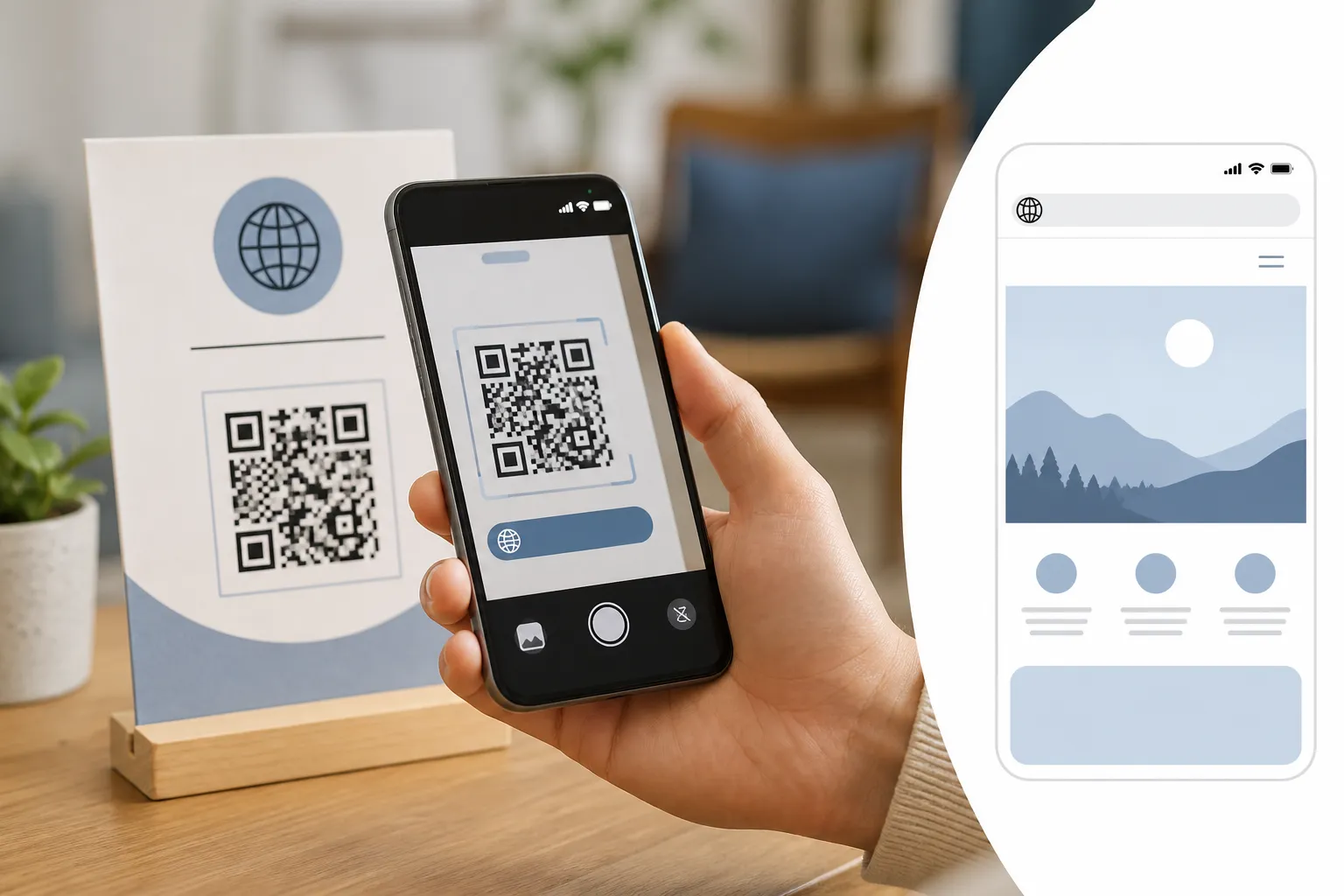
This covers the basics for a website code specifically; for a full preflight process before a real print run, see how to test a QR code before printing it. A code that scans is only the first frame of the experience. Scan the final proof - the real printed piece, not the file on your monitor - with several different phones, old and new. Before you tap through, read the URL in the camera preview and confirm it is exactly right, because this is your last cheap chance to catch a typo that shipped.
Then test the way a stranger will connect. Turn off your organization’s Wi-Fi and scan on mobile data, which is how you catch a page that only resolves on the internal network and would show a dead end to every real customer. Once the page loads, actually use it on the small screen: check the portrait layout, that the text is large enough to read without pinching, that keyboard access and focus order work for someone using assistive technology, and that the page degrades gracefully if a script or an image fails to load.
A small example that earns trust
A community workshop links a machine label to https://example.org/tools/drill-press/. The landing page opens with the safety instructions and the exact model of the machine, so a scanner knows within a second they reached the right thing. The printed label reinforces it: it reads “Drill press setup and safety” and shows example.org in plain type beneath the code.
Compare that to a poster shouting “Scan me!” over an opaque shortened link. The workshop’s version tells you what you will get, proves the destination, and gives you a way in even without a scan. That is the whole craft of a website QR code. The pattern is trivial; the trust is built in every layer around it, and it holds up only if you walked the full path yourself before anyone else had to.
Sources and further reading
Create the code you need
Use HighEndDIY’s private browser tool, then test the result in the setting where people will scan it.
Create a QR CodeFound something that should be corrected? Email help@HighEndDIY.com.